














Getting started
- Install the Proliferate app to your Slack workspace (Settings > Integrations > Slack)
- Invite
@proliferateto the channels where your team works - Mention it with a request
Start sessions from Slack
Mention@proliferate with a task description and the agent spins up immediately:
@proliferate add dark mode to the settings page@proliferate the signup form isn't validating emails, fix it@proliferate why is the API returning 500s on /users
Notify
Agents post progress updates and results directly to the channel or thread where the request started. For any thread, click Notify me to subscribe. You will get a Slack notification when that session is done.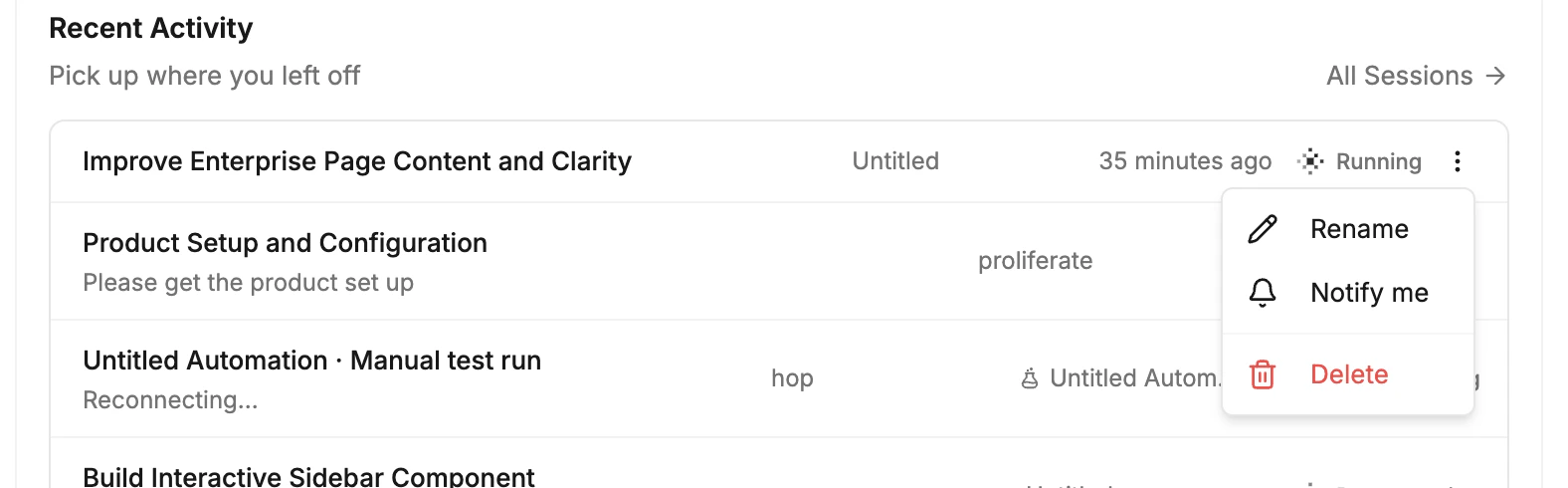
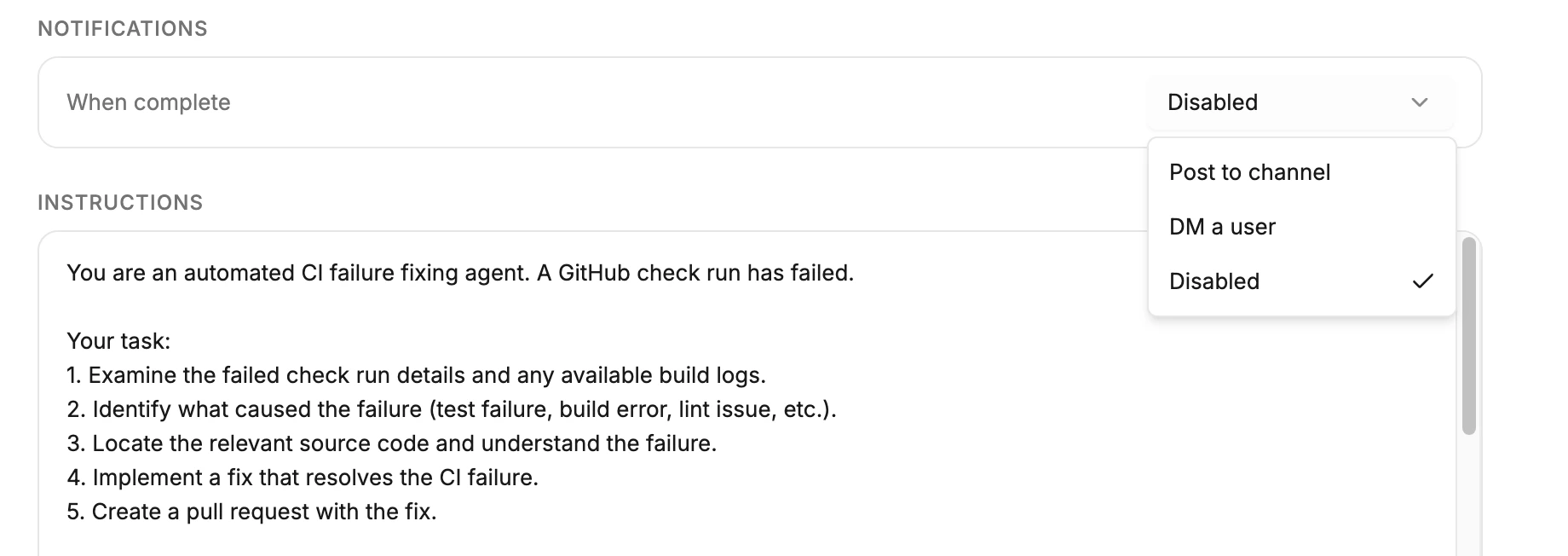
- Team notifications: notify a shared channel when an automation starts and finishes
- Individual notifications: notify specific people for run start/completion
Slack as integration vs client
Slack serves two roles in Proliferate:- Client- what this page covers. Mention the bot, start sessions, collaborate in threads, review results.
- Integration- Slack events (mentions, messages, reactions) can trigger automations that run without manual interaction.
For the integration side- connecting Slack as a trigger source for automations, OAuth setup, and event configuration- see Integrations > Slack.