







Every Proliferate session runs inside a sandbox — an isolated cloud environment with your repo, dependencies, Docker, secrets, and network access. Agents work in real environments with the same tools and dependencies your team uses. This is not a sandboxed toy. It is your actual stack.

What’s Included

Each sandbox comes with:
  • Your repo — Cloned and ready, with the correct branch checked out.
  • Docker — Run containers, spin up databases, start services. Full Docker and Docker Compose support.
  • Your dependencies — Installed according to your environment configuration.
  • Secrets — Injected securely at runtime. Agents can use them without ever seeing the raw values.
  • Network access — API calls, external services, package registries. Sandboxes have full outbound network access.
  • Full dev environment — Terminal, filesystem, everything an agent needs to build, test, and ship.
Think of a sandbox as a ready-to-go dev machine for the agent, with the same tools your team uses locally.

Sandbox Providers

Proliferate supports two sandbox providers:
ProviderDescription
Modal (default)High-performance cloud containers with snapshotting, memory snapshots, and fast resume. Used on Proliferate Cloud.
E2BAlternative provider for teams that prefer E2B’s infrastructure.
Both providers follow the same boot sequence: resolve an image, create or recover a sandbox, clone repos (or restore from snapshot), inject secrets and tools, start the coding agent, and start infrastructure services.
The sandbox provider is locked per session. If a session was created on Modal, it always resumes on Modal. Self-hosted deployments can configure the default provider via the DEFAULT_SANDBOX_PROVIDER environment variable.

Pre-installed Tools

Every sandbox comes with a standard set of tools pre-installed: Languages
  • Node.js 20
  • Python 3.11
Package Managers
  • pnpm
  • yarn
  • npm
  • uv
  • pip
Infrastructure
  • Docker
  • Docker Compose
Coding Agent
  • OpenCode (Proliferate’s terminal-based coding agent)
Additional tools and dependencies are installed via your environment configuration at sandbox boot.

Setup

Connecting a repo

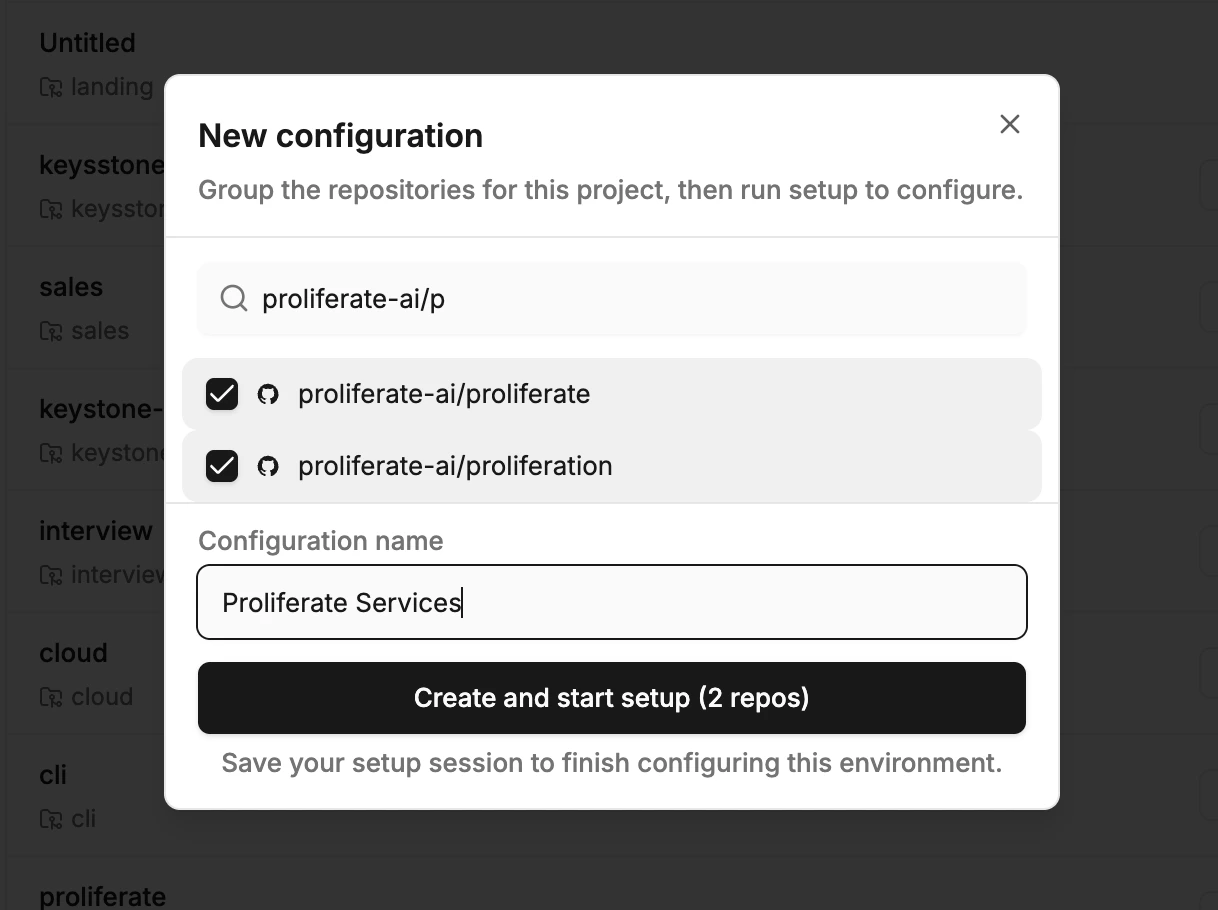
  1. Go to Settings > Repos
  2. Click Add repo
  3. Select from your connected GitHub organization
  4. Configure environment settings
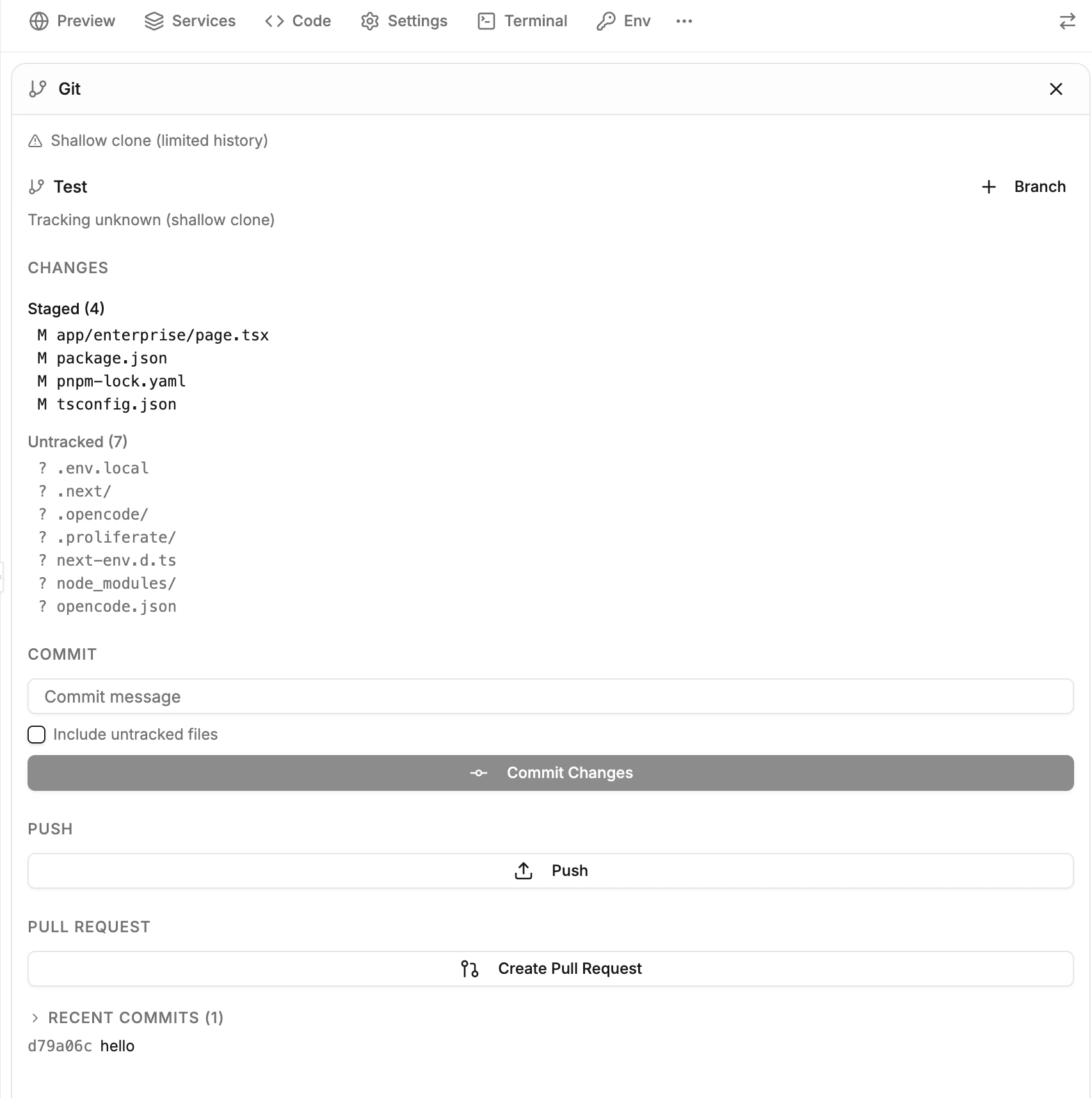
Each repo gets its own environment configuration that defines how sandboxes should be set up when working on that repo.

Environment configuration

The environment configuration is the “start-up recipe” for your sandbox. It defines:
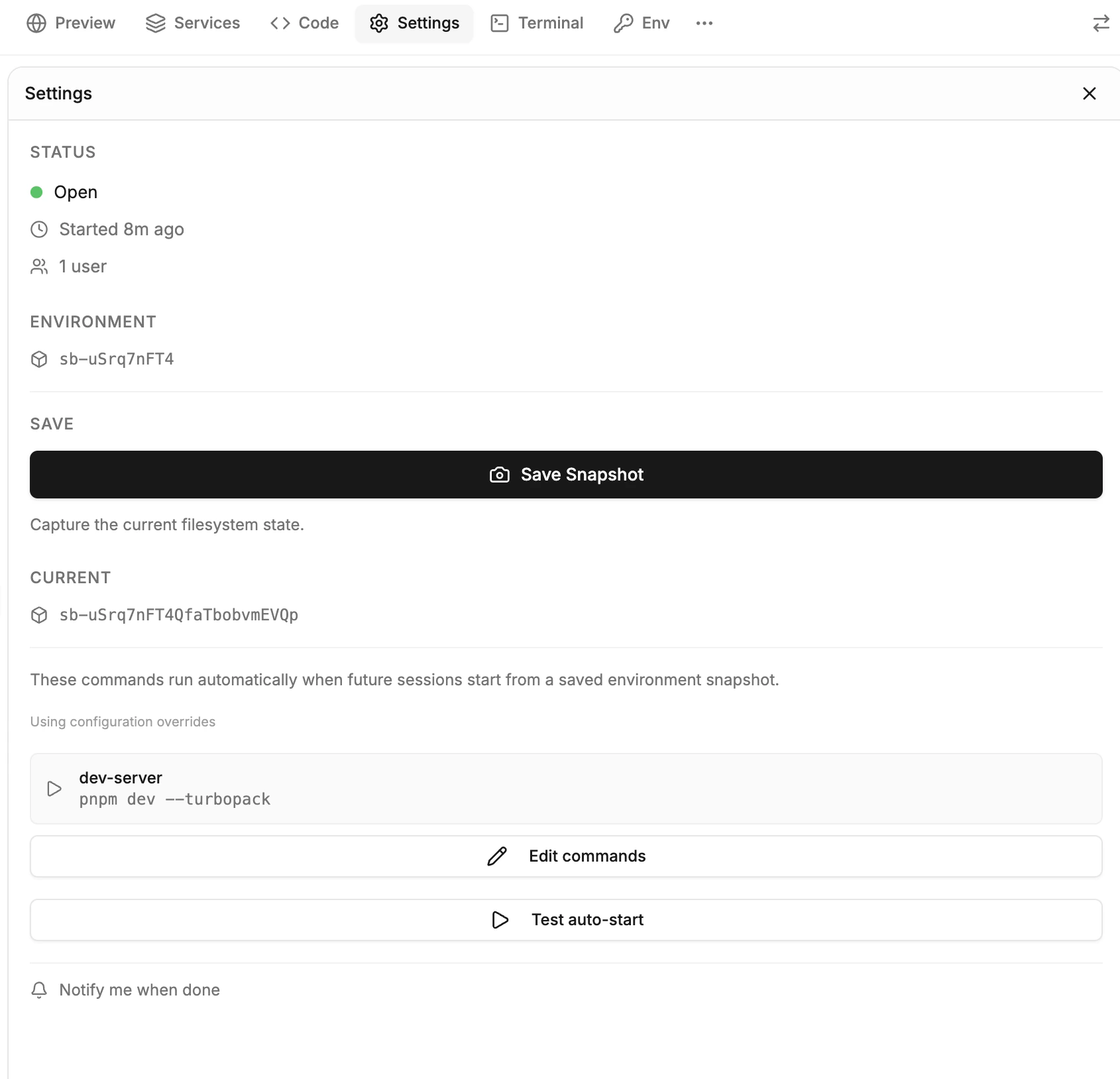
  • Setup commands — Shell commands that run at sandbox boot (install dependencies, build, seed data).
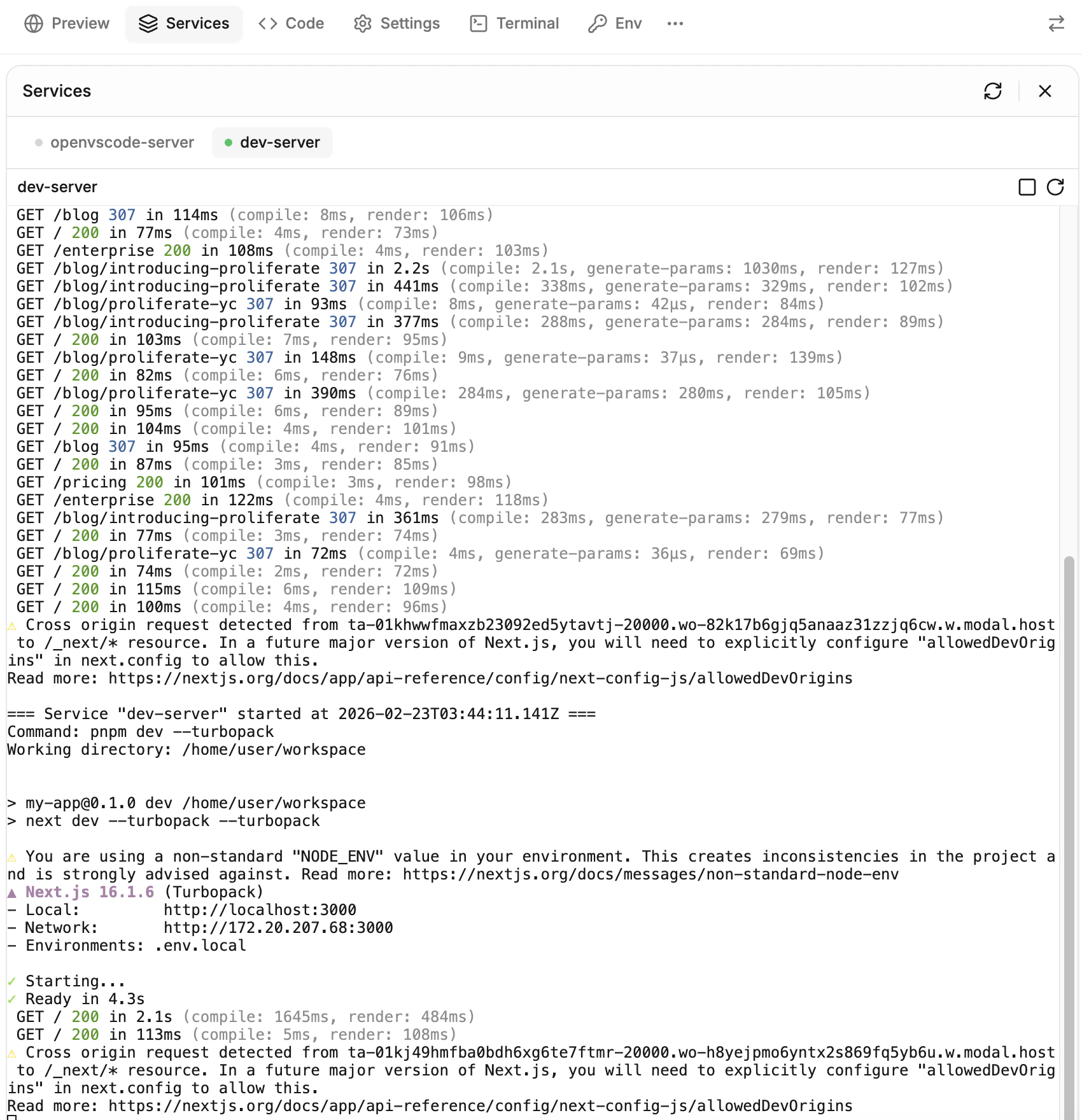
  • Service commands — Long-running processes to start (dev server, database, background workers).
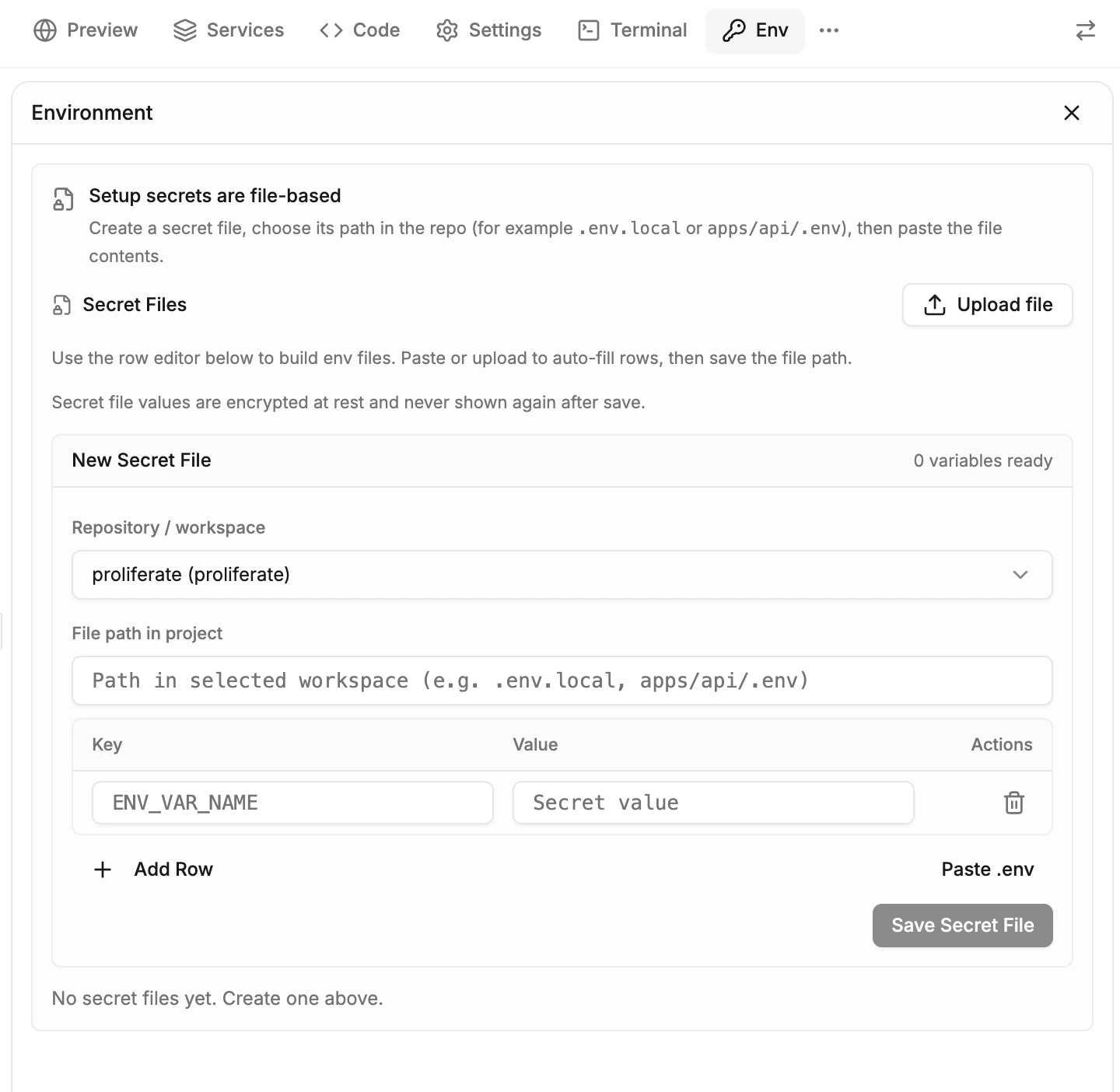
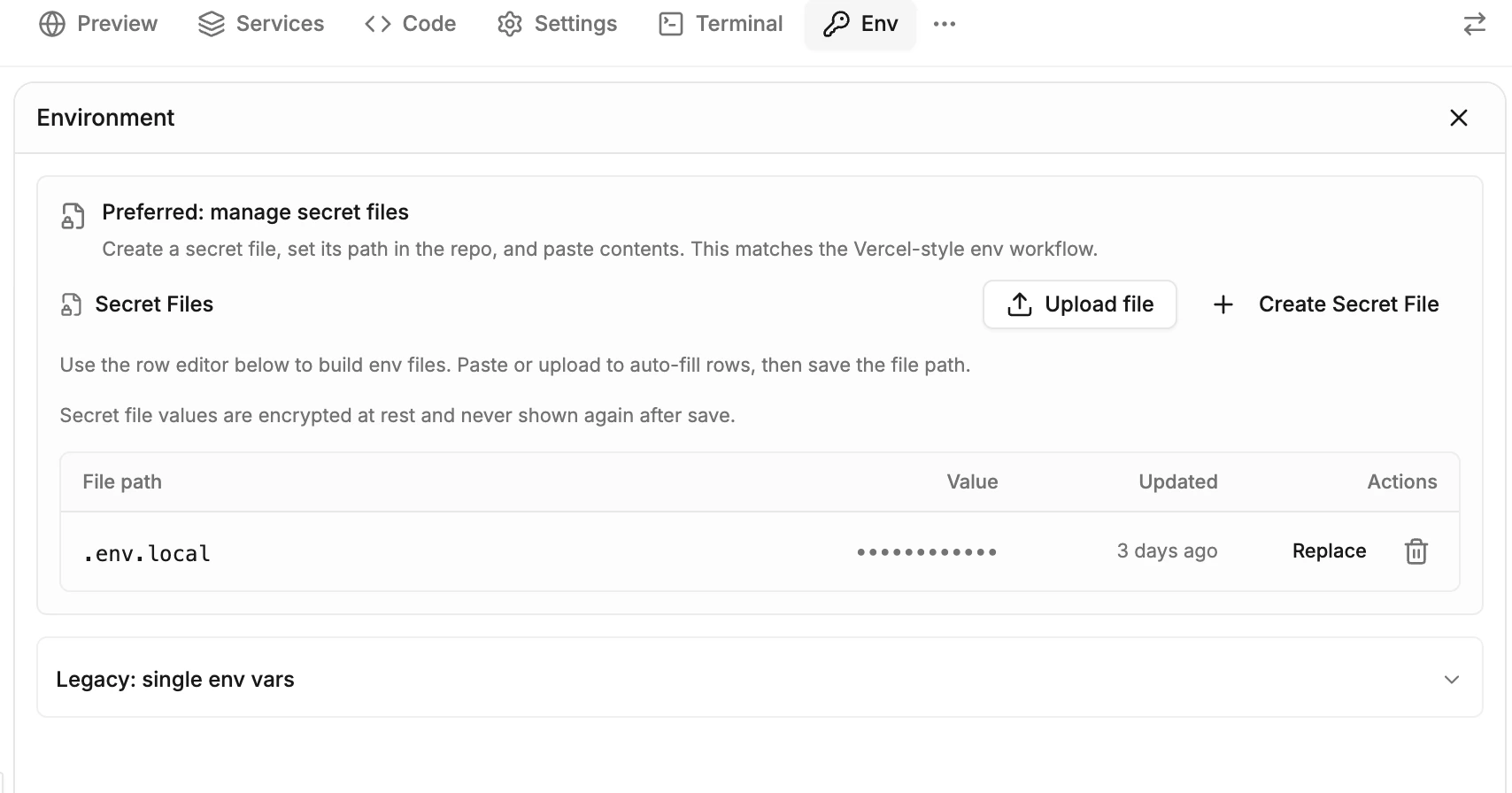
  • Environment files — Files written to disk before setup runs (.env, config files).
These settings live on your repo’s configuration and apply to every session that uses that repo.

Docker support

Agents can run Docker inside sandboxes, so they can spin up databases, message queues, and other services just like your local development setup. Docker Compose is supported for multi-container workflows.

Secrets & Credentials

Inject secrets securely into sandboxes so agents can do real work without exposing sensitive values.

Adding secrets

  1. Go to Settings > Secrets
  2. Click Add secret
  3. Enter the name and value
  4. Select which repos can access it
Secrets can be scoped to specific repos or shared across your organization.

How secrets are used

Secrets are written into environment files (like .env) at sandbox boot. The agent can use them through standard environment variable access, but never sees the raw values in logs or output.

Security guarantees

  • Encrypted at rest — All secret values are encrypted before storage.
  • Runtime injection only — Secrets are injected at sandbox boot, never baked into images or snapshots.
  • No direct access — Agents interact with secrets through environment variables. The raw values are not exposed.
  • Audit logging — Secret access is tracked in the audit log.
Secrets are never included in snapshots. They are re-injected fresh every time a sandbox starts or resumes.

Preview URLs

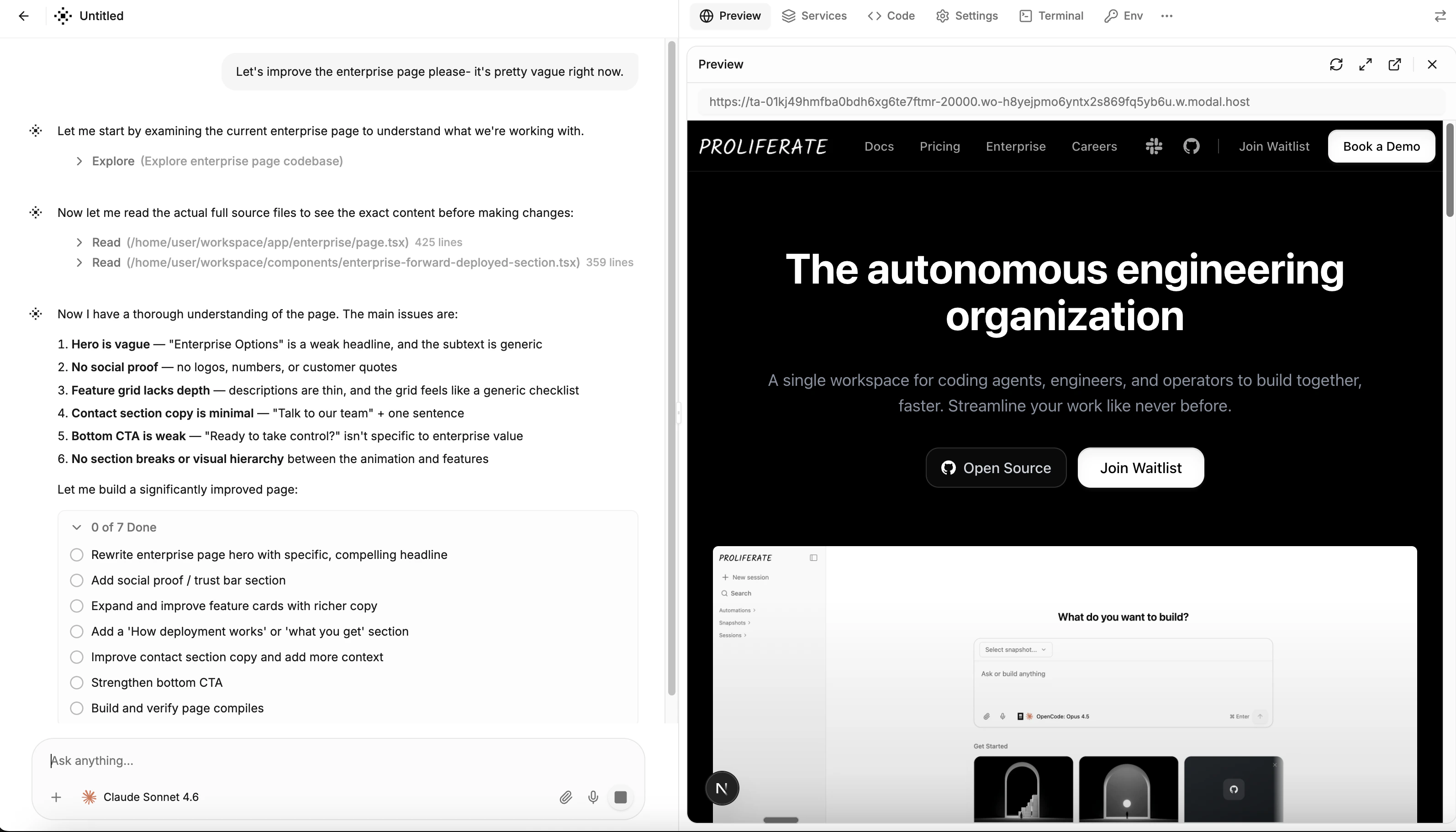
Every session can generate a shareable preview URL. Previews are the fastest way to get non-engineers involved — they can review changes without pulling code or running anything locally.

How it works

  1. The agent starts your dev server (or builds a preview)
  2. Proliferate detects the running service and exposes it at a unique URL
  3. Anyone with the link can see the preview
  4. The preview stays live for 24 hours

Configuration

Configure preview URLs per repo so agents know how to start your app and which port to expose. Set this up in the service commands section of your environment configuration.

Sharing

Preview URLs are automatically included in:
  • Slack messages — When the agent posts results
  • Linear comments — Attached to the relevant issue
  • GitHub PRs — Added to the PR description
  • Web dashboard — Visible on the session detail page

Snapshots

Snapshots save the full filesystem state of a sandbox so it can be resumed later without repeating setup steps. This is the foundation of fast startup times and cost-efficient compute.

How snapshots work

Proliferate uses a two-tier snapshot system:
TierWhat It ContainsWhen It’s Built
Base snapshotPre-installed tools and services (OpenCode, system packages). No repo.Automatically, when the platform version changes.
Configuration snapshotBase snapshot + your repos cloned + dependencies installed + setup commands run.Automatically after you configure a repo, or after a setup session completes.
When a new session starts, the snapshot resolver picks the best available layer:
  1. Configuration snapshot (if available) — Fastest. Repo is already cloned and dependencies are installed.
  2. Base snapshot — Repo is cloned live at boot. Dependencies install from scratch.
  3. No snapshot — Full cold start from the base image.
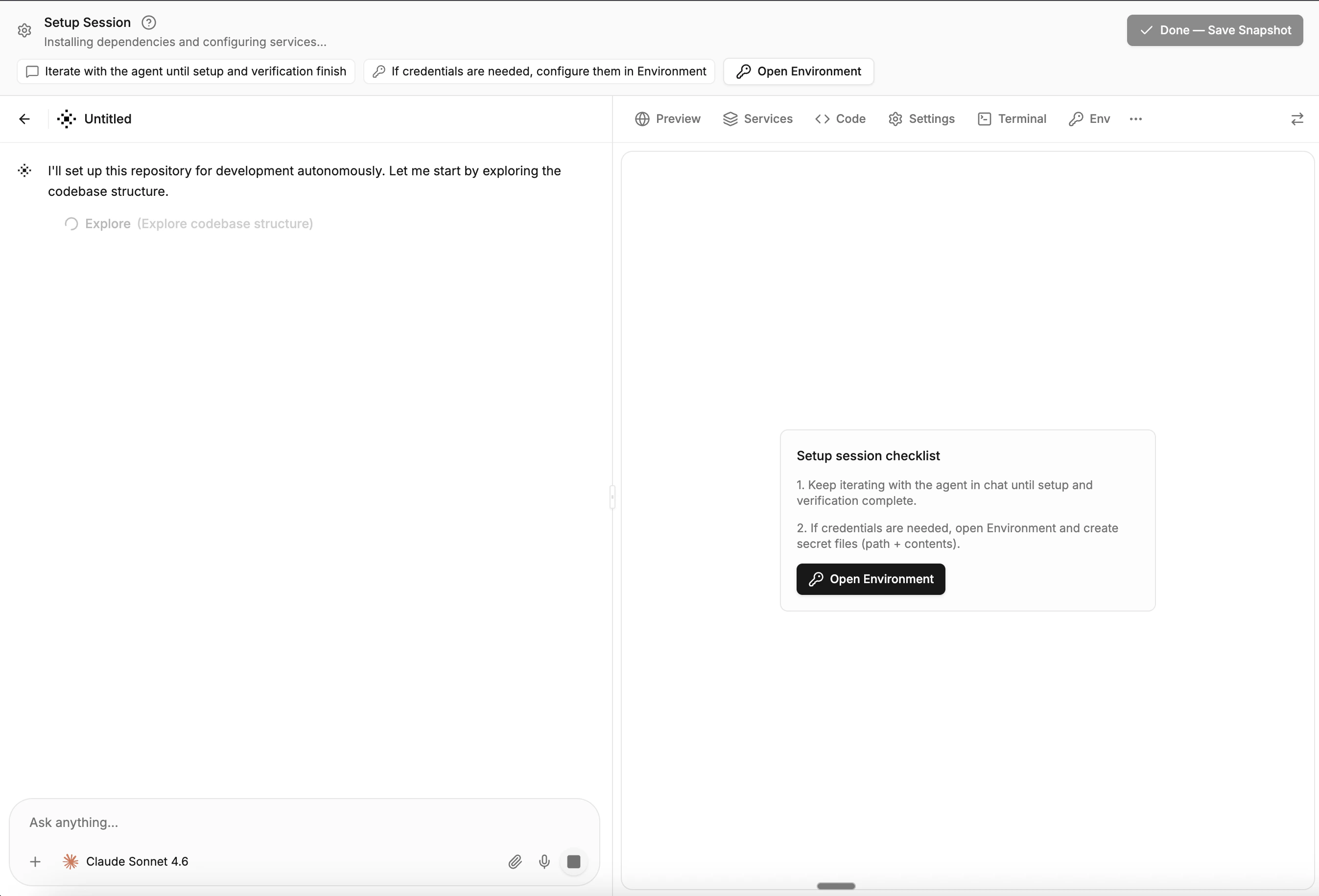
Running a setup session and finalizing it creates a configuration snapshot. This is the fastest way to get sub-30-second session startup for your repo.

Idle snapshotting and auto-pause

Sandboxes do not run forever. When all clients disconnect and the agent is idle, Proliferate automatically:
  1. Waits a grace period (default: 5 minutes for web sessions)
  2. Takes a snapshot of the sandbox state
  3. Terminates the sandbox to stop compute costs
When you reconnect or send a new message, the sandbox resumes from the snapshot. Your filesystem state, running processes, and conversation history are preserved.

Resume from snapshot

Resuming a session restores the sandbox from its most recent snapshot. The agent picks up where it left off with:
  • Full filesystem state (code changes, build artifacts, installed packages)
  • Conversation history
  • Fresh secrets (re-injected at resume time)
  • Updated code (git pull runs on restore if the repo has new commits)
Memory snapshots (available on Modal) capture the full process memory state in addition to the filesystem, enabling even faster resume times.

Advanced Configuration

Custom images

Use a custom sandbox image when your project requires specialized system packages, non-standard runtimes, or pre-installed tools that are not included in the default image.

Resource limits

Control how much CPU, memory, and disk a sandbox receives. Larger projects with heavy build steps or multiple services may need more resources than the defaults.

Caching

Speed up sandbox startup by reusing common build artifacts and dependencies across sessions. The snapshot system handles most caching automatically, but you can configure additional caching for package manager caches and build outputs.

Service commands

Service commands define long-running processes that start alongside the agent. Common examples:
  • Dev server (npm run dev, pnpm dev)
  • Database (docker compose up -d postgres)
  • Background workers
  • File watchers
Service commands are configured per repo or per configuration, and they run automatically at sandbox boot.
For detailed technical configuration, see the Developers docs.