














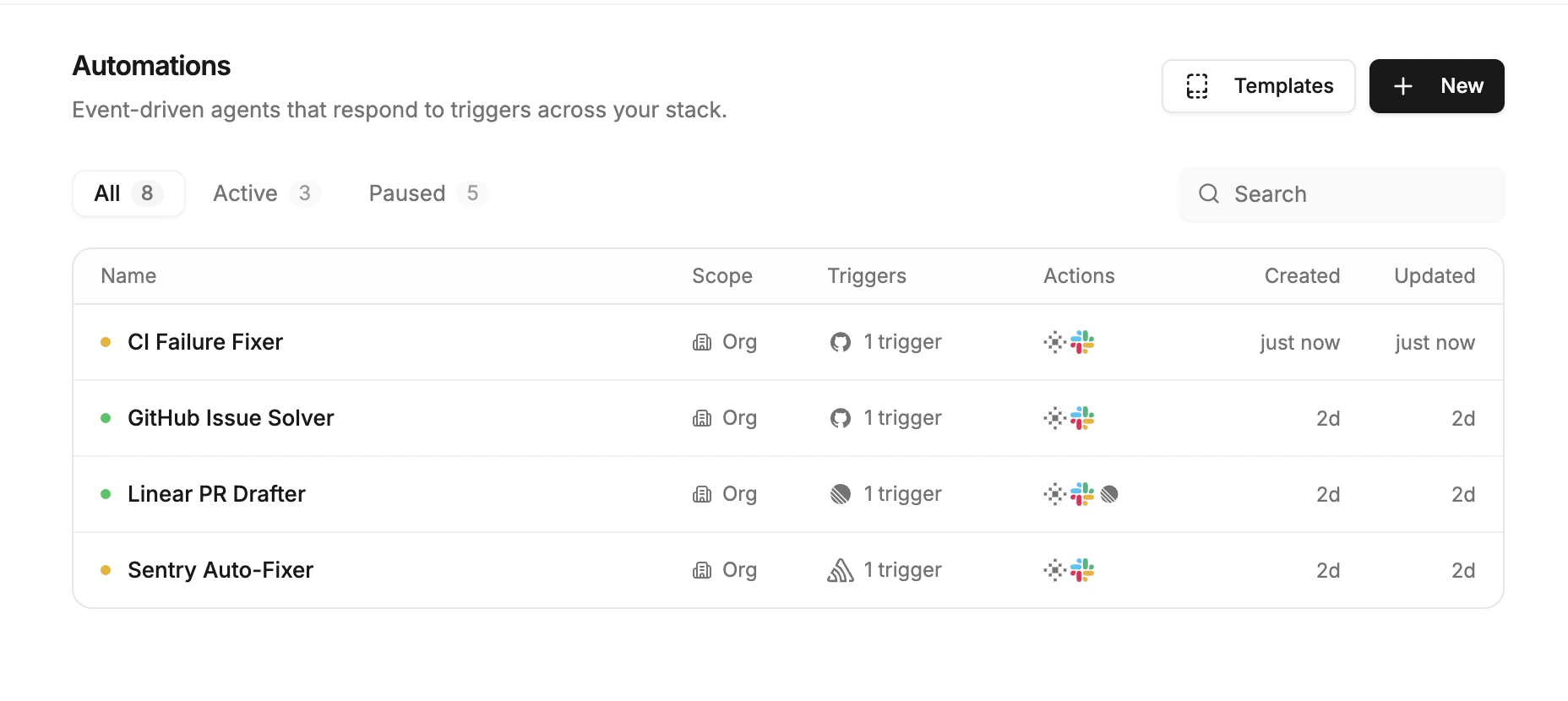
Core idea
Each automation defines:- When to run (trigger)
- What success looks like (instructions)
- What the agent is allowed to do (actions + approval rules)
Common use cases
Sentry error triage
Investigate production errors, identify root causes, and propose fixes automatically.
GitHub issue response
Reproduce bugs, draft responses, and suggest code changes.
Linear ticket automation
Triage new tickets and take a first pass at implementation.
Intercom support triage
Route high-impact support tickets to agents for faster resolution.
PostHog session replay
Watch replays, identify root causes, and suggest code changes.
Scheduled maintenance
Run recurring tasks like dependency updates, report generation, or cleanup.
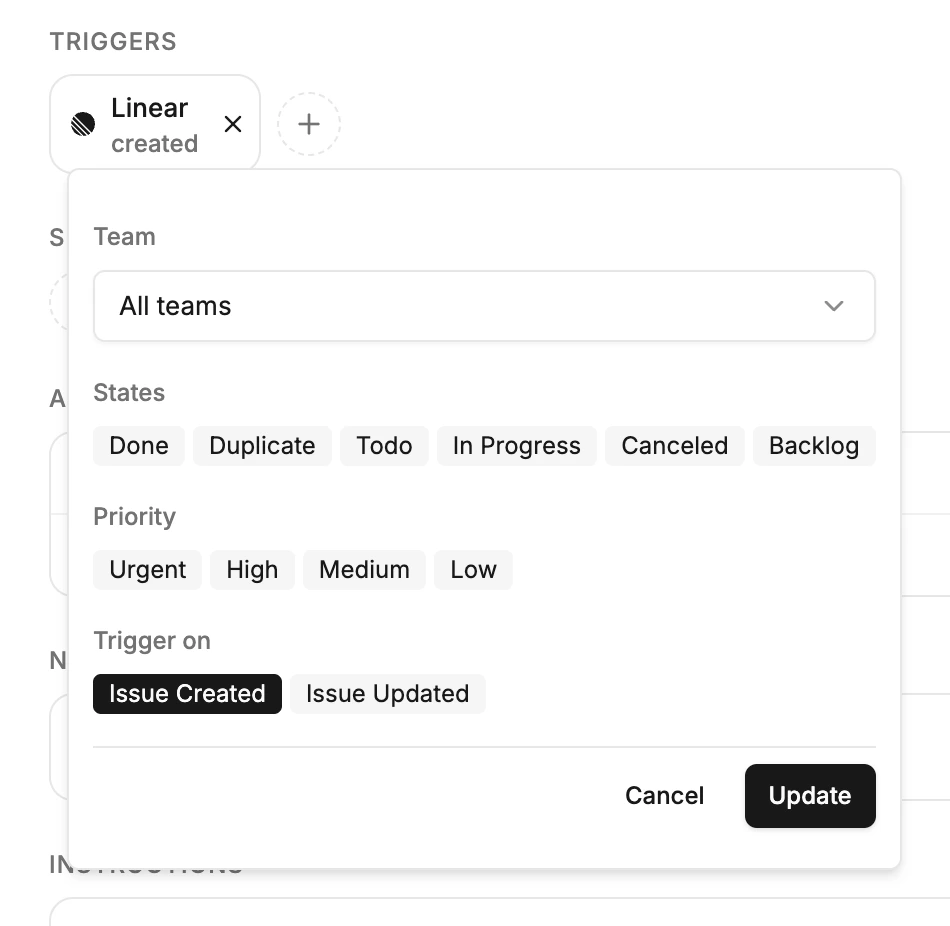
Triggers
Triggers are the starting signal. When a trigger fires, Proliferate launches an agent and passes the right context so it can act immediately. There are two kinds of triggers:- Events- Something happened (an error, a ticket, a message).
- Schedules- Something should happen on a cadence (daily, weekly, etc.).
| Source | Trigger examples |
|---|---|
| Sentry | Errors, new issues, high-severity incidents |
| Linear | New tickets, status changes, tagged issues |
| GitHub | Issues, pull requests, comments, pushes |
| PostHog | Product events, user behavior webhooks |
| Slack | Mentions, messages, reactions |
| Webhooks | Any system that can send an event, including Intercom |
| Schedules | Recurring cadence (hourly, daily, weekly) |
- The event details (error, ticket, issue, or replay)
- Relevant metadata (labels, severity, environment)
- Linked resources (threads, comments, related work)
Instructions
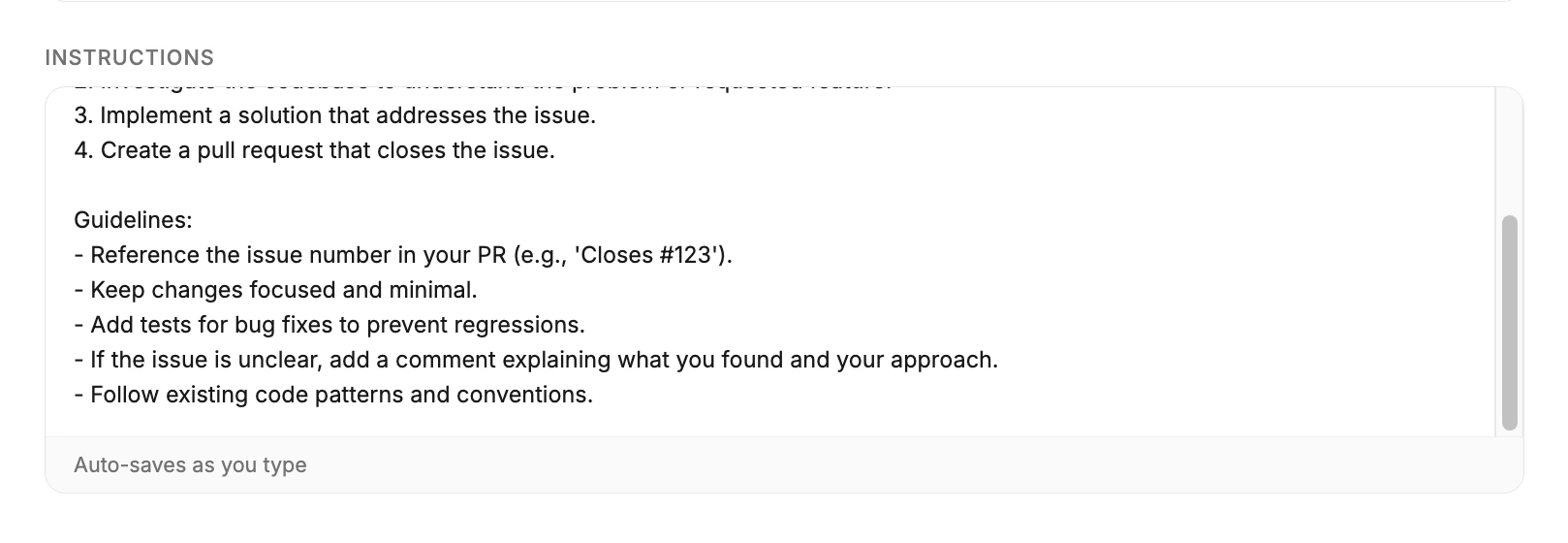
Instructions tell the agent what success looks like. Good instructions are short, concrete, and written like you would brief a teammate. Good vs vague:- Good: “Investigate the error, propose a fix, and report back in Slack.”
- Vague: “Look into this and do your best.”
- The outcome you want (e.g. identify the root cause and propose a fix)
- Constraints (e.g. avoid risky changes, do not touch production data)
- Where to report results (e.g. reply in Slack or comment in the ticket)
Actions
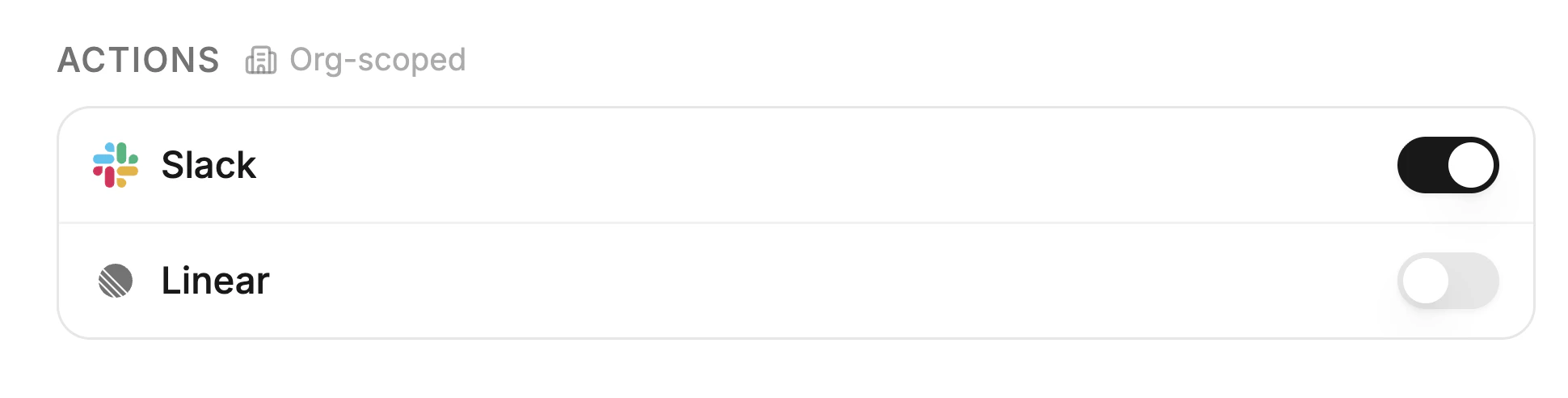
Actions are the operations an automation can run- opening PRs, posting in Slack, updating tickets, resolving errors, or using tools from connected MCP servers. Every action goes through approval rules:- Allow- Auto-execute without asking.
- Require approval- Pause and ask a human first.
- Deny- Block entirely.
Templates
Templates are prebuilt automation blueprints. They package a proven trigger, instruction style, and action policy so you can launch common workflows in minutes. Use templates when you want a strong default quickly, then customize details for your team:- Swap the trigger source (for example, Sentry to GitHub Issues)
- Edit the instructions for your codebase and escalation style
- Tighten or relax action approvals based on risk
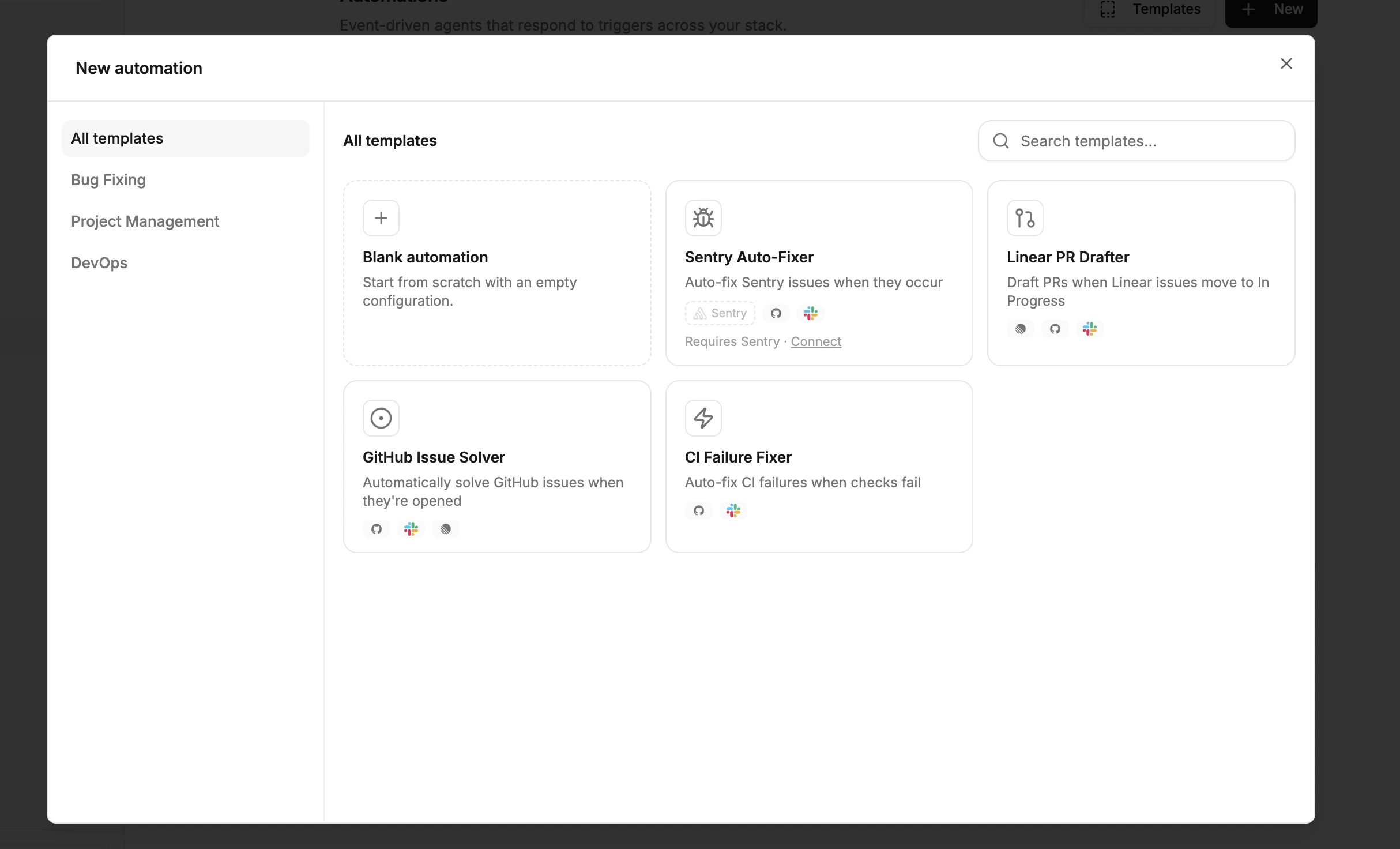
Example
A Sentry error fires in production. Your automation launches an agent that reads the stack trace, traces the bug to a specific function, writes a fix, runs the test suite, and opens a pull request. If the automation requires approval for risky actions (like merging), the agent pauses and notifies you in Slack or the web dashboard. You approve, and the automation continues.Next steps
Actions
See what agents can do beyond writing code.
Permissions
Control what agents are allowed to do.